You’re excited to dive into mobile robotics, having read the papers, executed the R&D readiness audit and watched the demos. You know ROS 2 (Robot Operating System 2) is a useful framework for any serious R&D project, from mobile autonomy in logistics to advanced sensing and operational range estimation for field deployment. But then you hit the roadblocks:
- Should you or should you not use ROS? We already addressed the ROS dilemma in Industry. But, there is yet another roadblock,
- Installation.
The official ROS 2 documentation assumes you run native Ubuntu, requiring a messy, potentially data-erasing dual-boot setup on your personal machine. For engineers, students, and researchers running Windows or macOS, this technical barrier is a massive source of procrastination and frustration. You shouldn’t have to sacrifice your primary operating system just to write a robotics node.
The good news? You don’t have to.
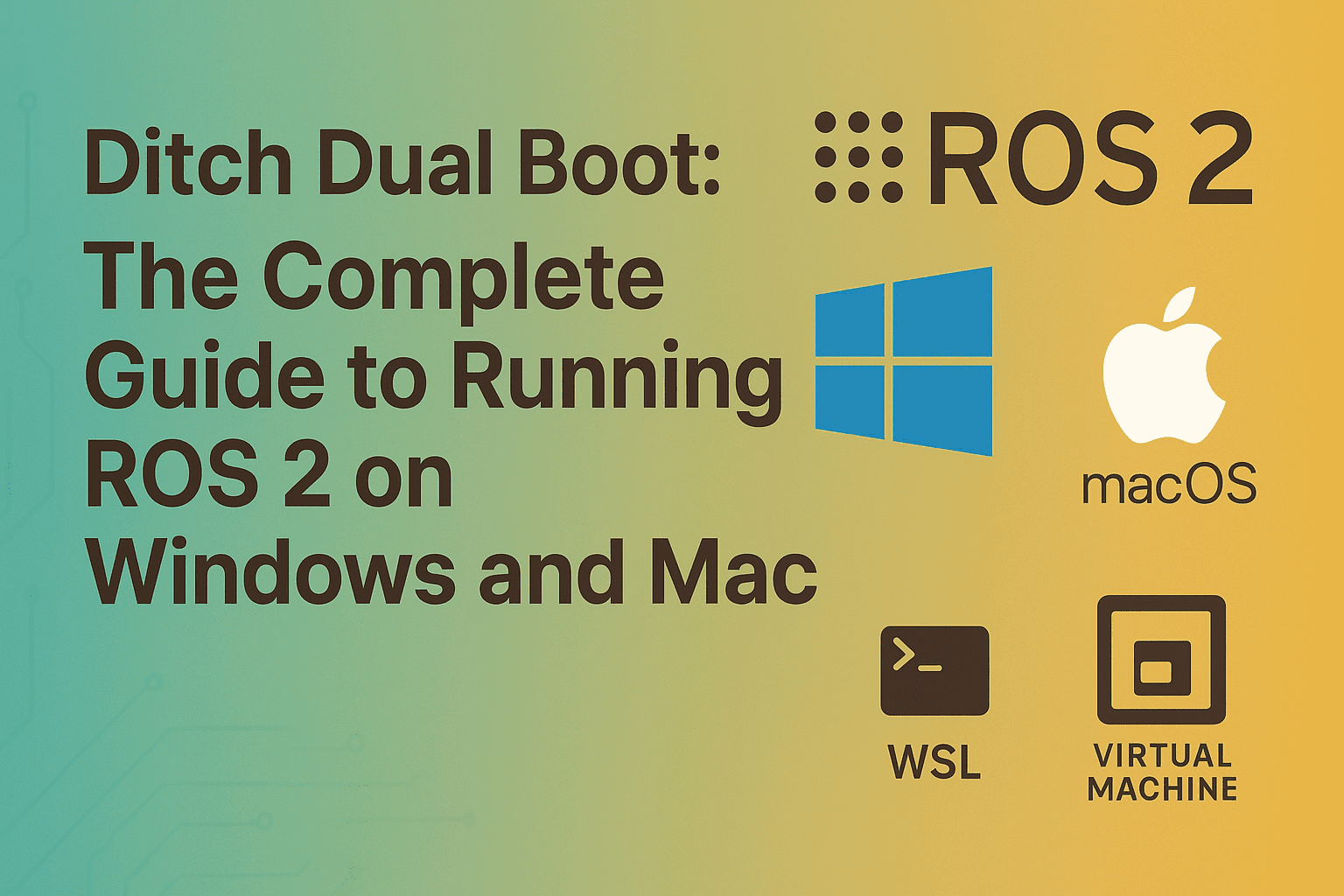
This guide provides the complete, modern, and non-destructive strategy for running a stable ROS 2 environment on your Windows or Mac machine using virtualization technologies. We’ll focus on Windows Subsystem for Linux (WSL) for Windows and the Virtual Machine (VM) approach for Mac, and introduce the crucial third method: Docker, which offers unparalleled portability and project isolation—a must-have for professional R&D teams.
Table of Contents
ToggleWhy ROS 2 Resists Native Windows/Mac Installation
Before diving into the solution, it helps to understand the problem. ROS 2 (and its predecessor, ROS 1) is deeply integrated with the architecture and packages of Linux, specifically Debian/Ubuntu.
Package Management: ROS relies heavily on Linux package managers (
apt) to handle dependencies—libraries, compilers, and tools required by various robotics modules. These dependencies are complex to replicate on Windows or macOS.Real-Time Performance: Robotics often requires low-latency communication and processing. While core systems like macOS and Windows have improved, the Linux kernel still offers superior control over timing, which is vital for real-time robotic applications.
Community Support: The vast majority of robotics research, open-source packages, and hardware drivers are tested and maintained exclusively on Linux, making troubleshooting significantly harder on other platforms.
Attempting a native install on Windows or Mac often results in brittle, unstable environments that break with every minor update. The solution is simple: Bring Linux to your machine, not the other way around. But this is easier said than done and often a hurdle that baffles early adopters. In what follows, we present multiple options to overcome such challenges and set up a fully functional ROS 2 environment on your PC.
ROS 2 Installation Strategy 1: The Windows Solution (WSL 2)
For all modern Windows users, the Windows Subsystem for Linux (WSL) version 2 is the best, most performant solution for running ROS 2. WSL 2 provides a full, isolated Linux kernel running in a lightweight utility VM, offering near-native performance without the complexity of traditional virtualization.
Step-by-Step WSL 2 Setup
Enable WSL and Virtual Machine Platform: Open PowerShell as Administrator and run the command
wsl --install. This command, in modern versions of Windows, enables the necessary features and installs a default Ubuntu distribution. If you are on an older Windows version, you may need to enable “Virtual Machine Platform” and “Windows Subsystem for Linux” manually via “Turn Windows features on or off.”Install Ubuntu Distribution: Once the initial setup is complete, install a specific Ubuntu version (e.g., Ubuntu 20.04 LTS for ROS Foxy or 22.04 LTS for ROS Humble) from the Microsoft Store.
Update and Upgrade: Inside the new Ubuntu terminal, always start by updating your package lists:
sudo apt update && sudo apt upgrade.Install ROS 2 Dependencies: Follow the official ROS 2 documentation for Debian/Ubuntu installation. The key is ensuring you install the correct ROS 2 distribution (e.g., Humble or Foxy) that corresponds to your Ubuntu version.
Tip: Ensure you install the “desktop” variant, as it includes the necessary tools like RViz and Gazebo for visualization and simulation.
Setting up Environment Variables: After installation, you must source the ROS 2 setup script to use the commands:
source /opt/ros/humble/setup.bash(replacehumblewith your distribution). To make this permanent, add this line to the end of your~/.bashrcfile.
For a more detailed walkthrough, you can refer to the official Microsoft documentation for installing WSL 2.
WSL 2 Advantages for R&D:
File System Integration: Easily access your Linux files from the Windows File Explorer (
\\wsl$\ubuntu).Performance: WSL 2 uses a true Linux kernel, offering significantly better I/O and networking performance than legacy virtual machines.
Zero Dual Boot Risk: Your Windows OS is completely safe and separate.
ROS 2 Installation Strategy 2: The Mac Solution (Virtual Machine)
Since macOS is a Unix-based system, some developers attempt native installation, but this is highly discouraged due to constant package conflicts. The most stable and reliable path is using a Virtual Machine (VM) solution.
Step-by-Step VM Setup for macOS
Choose Your Virtualization Software:
Parallels Desktop (Paid): Offers the best performance and integration for Intel and Apple Silicon (M1/M2/M3) Macs.
VMware Fusion (Free for Personal Use): A reliable, high-performance alternative, fully supporting Apple Silicon.
VirtualBox (Free): The free option, but performance can be sluggish, especially on older hardware.
Install Ubuntu ISO: Download the latest Ubuntu Desktop LTS (Long-Term Support) ISO file. Ensure you download the ARM version if you are on an Apple Silicon Mac.
Create the VM: Use your chosen software (Parallels/VMware) to create a new virtual machine, pointing it to the Ubuntu ISO file. Allocate at least 4 CPU cores and 8GB of RAM to the VM for smooth simulation work.
Install Ubuntu and Guest Tools: Complete the standard Ubuntu installation within the VM. Immediately install the virtualization software’s “Guest Tools” (e.g., Parallels Tools) to enable smooth file sharing, better graphics performance, and seamless mouse/keyboard integration.
Install ROS 2: Follow the official Debian/Ubuntu installation guide for your chosen ROS 2 distribution (e.g., ROS Humble or ROS Rolling).
VM Advantages for R&D:
Guaranteed Stability: The VM provides a completely isolated, clean environment guaranteed to run Ubuntu natively. Any issue that occurs is contained within the VM.
Snapshotting: VMs allow you to take snapshots—a full backup of the system at a perfect working state. If your ROS environment breaks, you can revert instantly, a feature essential for complex R&D projects.
Dedicated Resources: You can dedicate a fixed amount of CPU and RAM to the VM, ensuring you have the processing power needed for simulation tools like Gazebo.
ROS 2 Installation Strategy 3: Docker for Project Portability
Regardless of whether you use WSL or a VM as your backend, you must learn to use Docker for packaging your ROS 2 projects and there is a very big reason for it.
What is Docker?
Docker is a platform that allows you to automate the deployment of applications in lightweight, portable containers. Think of a container as a tiny, self-contained package that holds everything an application needs to run: the code, a specific ROS 2 distribution, runtime libraries, and system tools.
Unlike a Virtual Machine, which virtualizes the entire operating system and hardware stack (making it bulky and slow), a Docker container virtualizes only the application layer, sharing the host system’s kernel. This makes containers incredibly fast to start and highly efficient with resources.
Docker’s core value is portability: “If it runs in one container, it runs identically in every other container, everywhere.”
How to install Docker?
Download and install ROS 2 with Docker Desktop for Windows (which uses WSL 2 internally) or Mac following our step-by-step guide.
Docker Advantages for R&D Teams:
Zero “It Works On My Machine” Issues: Every team member and every deployment target uses the exact same environment image.
Fast Onboarding: New team members can pull the entire development environment (including ROS 2, dependencies, and project code) with a single command, cutting weeks off onboarding time.
CI/CD Integration: Docker containers are the backbone of automated testing and deployment, making your R&D process professional and scalable.
Essential Next Steps: De-Risking Your ROS 2 Development
Installation is only the first hurdle. To prevent PhD burnout and costly corporate R&D delays, you must establish a stable, strategic ROS 2 workflow.
1. Master Remote Development and Workflow
VS Code Integration: Use VS Code Remote Development extensions to edit your ROS 2 code from your native OS, compiling and running everything on the remote Linux backend (be it WSL, VM, or Docker).
X Server for Visualization: Learn to use an X Server (like VcXsrv on Windows) to display Linux graphical applications (like RViz) on your native desktop while the heavy processing stays in the Linux environment.
2. Strategic Tools are Non-Negotiable
Every line of R&D code must be tracked. Immediately set up Git within your Linux environment. Learn to use Dockerfiles as a project manifest to capture all dependencies. This is critical for collaboration and for preventing the catastrophic loss of research progress.
3. Move Beyond Basics: Strategic Training
Getting ROS 2 installed proves you’re committed. The next step is proving you can use it to build reliable, publishable, or deployable systems.
Generic tutorials focus on basics; high-impact R&D requires specialized hands-on ROS 2 training in areas like:
Reliable Navigation Stack Tuning: Moving beyond default settings to configurations that handle noisy sensors and real-world failure scenarios.
Advanced Sensor Fusion: Implementing robust Extended Kalman Filters (EKF) for highly reliable localization.
CI/CD Pipeline Setup: Integrating Continuous Integration for automated testing, which is mandatory for production-ready code.
Are you a Corporate/Startup or Academic Institution in need for ROS 2 training? You can read our full guide on ROS 2 Training for R&D: Faculty Development Programs vs. Corporate Autonomy Accelerator and reach out to us to organize a thorough hands-on ROS 2 training for your team. If you are an individual instead, now that your environment is set up, the next challenge is architecting your stack for robotics system integration to ensure your ROS 2 nodes perform reliably on physical hardware.
Key Takeaways
The dual-boot dilemma is solved. By strategically leveraging the power of WSL, VMs, and Docker, you have removed the biggest technical barrier to entry. Your time is valuable; it should be spent building, simulating, and publishing, not troubleshooting OS conflicts.
The robotics revolution is here. The only question is, is your team ready to lead it with a strategically sound, ROS 2-powered foundation?
Ready for a Strategic Discussion?
Your robotics project or academic career deserves a strategic roadmap built on international, Ph.D.-level expertise. Let’s map out your path to accelerated results.